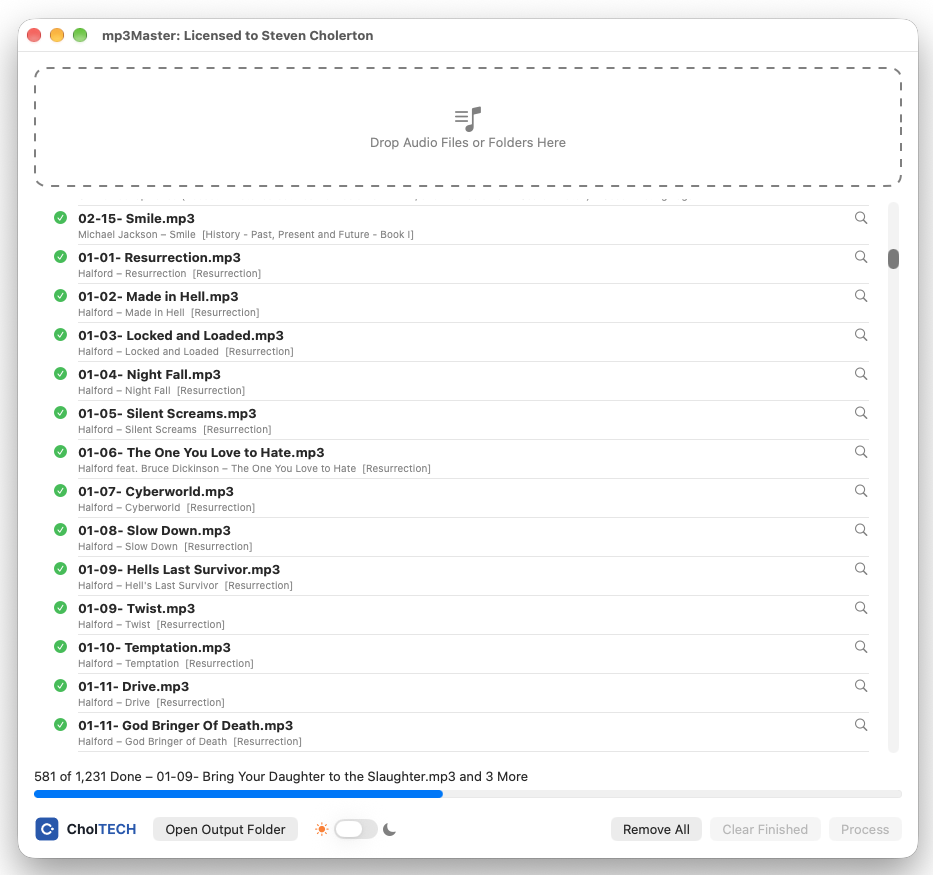
mp3Master is a native macOS SwiftUI app designed to help you organise and make some sense of your MP3 music collection. Users drop audio files, folders or zips onto the window, press 'Process', and each track is identified (AcoustID fingerprint + MusicBrainz), converted/tagged as ID3v2.3 MP3, and saved as:
<Output>/<AlbumArtist>/<Album>/<Artist>_<Title>.mp3
with a cover.jpg per album folder. The output root defaults to ~/Documents/mp3Master and is configurable in Settings.
The app is multi threaded and works on several tracks at once. This is limited by the connections allowed and the rate allowed from AcoustID and MusicBrainz. Still, it does work quite quickly. In addition a progress bar and track count is shown, and the list of tracks scrolls, so those currently being processed are shown.
NOTE: You need to sign up for a free AcoustID api key. It's the app API you need, which you get by selecting 'Register your application' from the AcoustID home page.
How the Audio and Tags are Written
MP3s are copied without re-encoding; every other format is converted to MP3 at 320 kbps.
Tracks won't be copied to a particular folder if the track already exists.
All old tags are removed and a fresh set is written as ID3v2.3 (plus ID3v1), for the widest player support. Tags: title, artist, album, album artist, year/date, genre, composer, publisher (label), track n/total, disc n/total, and the MusicBrainz Track/Album/Release Group/Artist Ids and AcoustID.
Genre is MusicBrainz's most-voted genre; the date is the chosen release's date.
The cover art comes from the Cover Art Archive, else the file's own embedded art. It is embedded in the MP3 and saved once as cover.jpg in the album folder. An existing cover.jpg is never replaced.
Album Tidy Up After Each Batch
A 'tidy up' is done on every album folder the processing batch touched, including tracks saved by earlier batches. Only tags that differ are rewritten, without re-encoding; the running order (track numbers) is never changed, this means your MP3 player can play them in the order the original artist intended.
Tracks that were not identified online join the folder of the same album's identified tracks (names compared ignoring case, punctuation and disc markers). Folders left with only cover.jpg are removed.
The album name and album artist are taken from tracks identified online; otherwise the most common value in the folder.
The year comes from identified tracks, otherwise the most common year (a tie goes to the earliest). Changed only where tracks disagree or lack one; a full date already matching the year (e.g. "2006-03-01") is kept.
Identified tracks set the disc count. Without them, an album whose tracks are all disc 1 or unnumbered becomes disc 1/1; albums using disc 2 or above are left alone.
The most common total on each disc is filled in on tracks missing it or disagreeing. A total is never guessed from the number of files, since an album may be incomplete.
Note: the app cannot know an original year (e.g. 1982 for a remaster) that no track carries and MusicBrainz doesn't give.
Allowed Files
Accepted: mp3 m4a aac flac wav aif aiff ogg oga opus wma alac ape wv mp4, folders (searched recursively) and zips (unzipped on drop, zips inside zips too).
Originals are copied, never moved or changed. Nothing is processed until the 'Process' button is pressed.
Where Each Track Is Saved
<Output Folder>/<Album Artist>/<Album>/<Artist>_<Title>.mp3
<Output Folder>/<Album Artist>/<Album>/cover.jpg
Where the Information Comes From
1. Online first: (needs a free AcoustID application key): the audio is fingerprinted, matched on AcoustID, and details are fetched from MusicBrainz. If AcoustID knows the sound but has no MusicBrainz link, MusicBrainz is searched by the tagged artist and title (same title, overlapping artist, length within 10 seconds).
2. The album already in the tags wins. If the file says it is on an album (e.g. a compilation), the app finds that album on MusicBrainz rather than the song's original album. Where several editions share a name, an edition is only used if the tagged disc, track number and track count all agree; otherwise the track keeps its own album tags and only song details (title, artist, genre, IDs) come from online.
3. No album in the tags: the best release is chosen, preferring official studio albums, then the earliest date.
4. Existing tags fill any gaps, and are used on their own if there is no key or the lookup fails. A failed lookup never fails the track; it is shown with an orange note.
Installation and Licensing
After download, double click the DMG file and drag the mp3Master application into your Applications folder, then double click to run the application. mp3Master will state ‘Trial License’ in the window title.
To remove this window title and the banner at the footer of the window, use this licence request form, which after selecting the application you require a license for, will ask for your name and email address. When you submit this form you will shortly receive a licence file via email. Just drag this .lic file into this folder:
~/Library/Application Support/mp3Master/
and restart mp3Master. The license is free.
Note: This application is signed and notarised by Apple.